QR Code
QR Code lets your customer start identity verification on the computer and continue on mobile. When enabled, the journey shows a QR Code on the desktop screen; the customer points their phone's camera at it and continues the process there.
On this screen you turn that display on and off, with no support ticket needed.
Who it's for: customers whose users start the journey on desktop and need a camera for capture.
What changes for the end user: instead of getting stuck on a machine with no camera or a bad webcam, they can continue on mobile, which usually has a better camera.
Where to find it: IDCloud Portal → sidebar Settings → QR Code tab.
Before this screen existed, enabling it required manual work from Unico's Operations team. Now it's a toggle.
Before you start
Access permission
Your user needs the Administrator or Configurator profile. If the QR Code tab doesn't show up, talk to your account administrator.
How the configuration is applied
| Immediate effect | There's no save button. The toggle applies the change the moment you click it. |
| Separate environments | The Staging Portal only affects UAT; the Production one only affects Production. Enabling it in one doesn't enable it in the other. |
| When it takes effect | On journeys started after the change. Journeys already in progress continue as they started. |
| Change log | Every change is logged with the user and timestamp. The screen doesn't show this history — it lives in the Portal log. |
What to know before enabling
The QR Code flow itself already exists and doesn't change: what this screen controls is only whether it's displayed or not. You don't configure appearance, expiration time, or QR Code behavior here.
It's worth enabling in Staging first and going through a full journey before turning it on in Production — not because the configuration is complex, but so your support team gets familiar with the screen your customer will see.
Step by step
Step 1 — Open the QR Code tab
In the IDCloud Portal, click the gear icon (Settings) in the sidebar and select the QR Code tab.
The screen shows a single card, QR Code in the validation journey, with the Enable QR Code in the journey toggle. The toggle's position shows the current state: on means journeys are already displaying the QR Code.
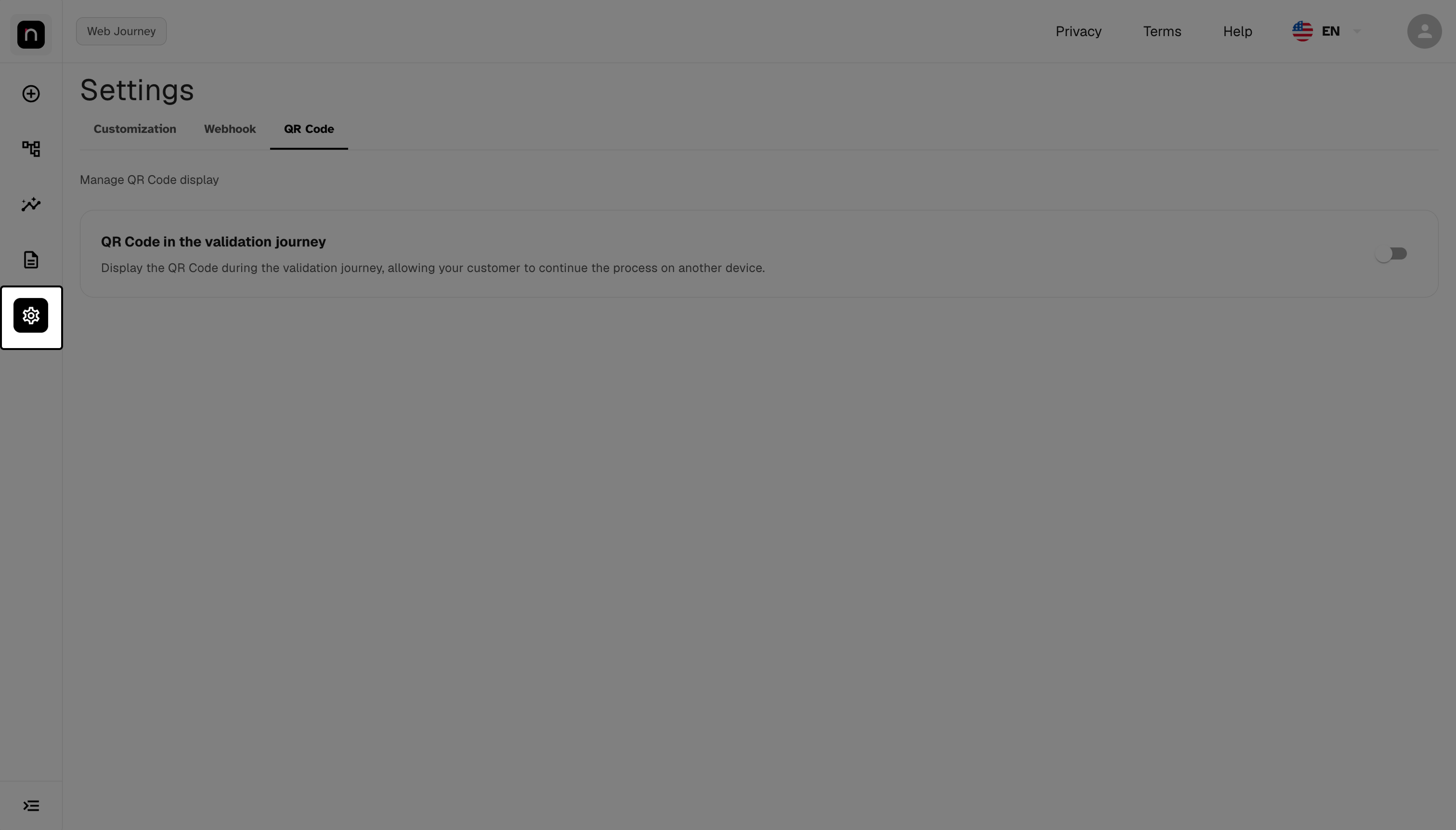
"QR Code in the validation journey" card and the enable toggle.
Step 2 — Turn the toggle on or off
Click the Enable QR Code in the journey toggle.
The change applies immediately, and the Portal shows a notification confirming success — or the error, if something fails. There's no save button and no confirmation before applying.
Check the environment before clicking. Since the effect is immediate and there's no confirmation, it's worth checking whether you're in the Staging or Production Portal before touching the toggle. Turning it on in Production by mistake changes your real customers' journey right away.
If the notification shows an error, the state wasn't changed. Try again; if it persists, contact support.
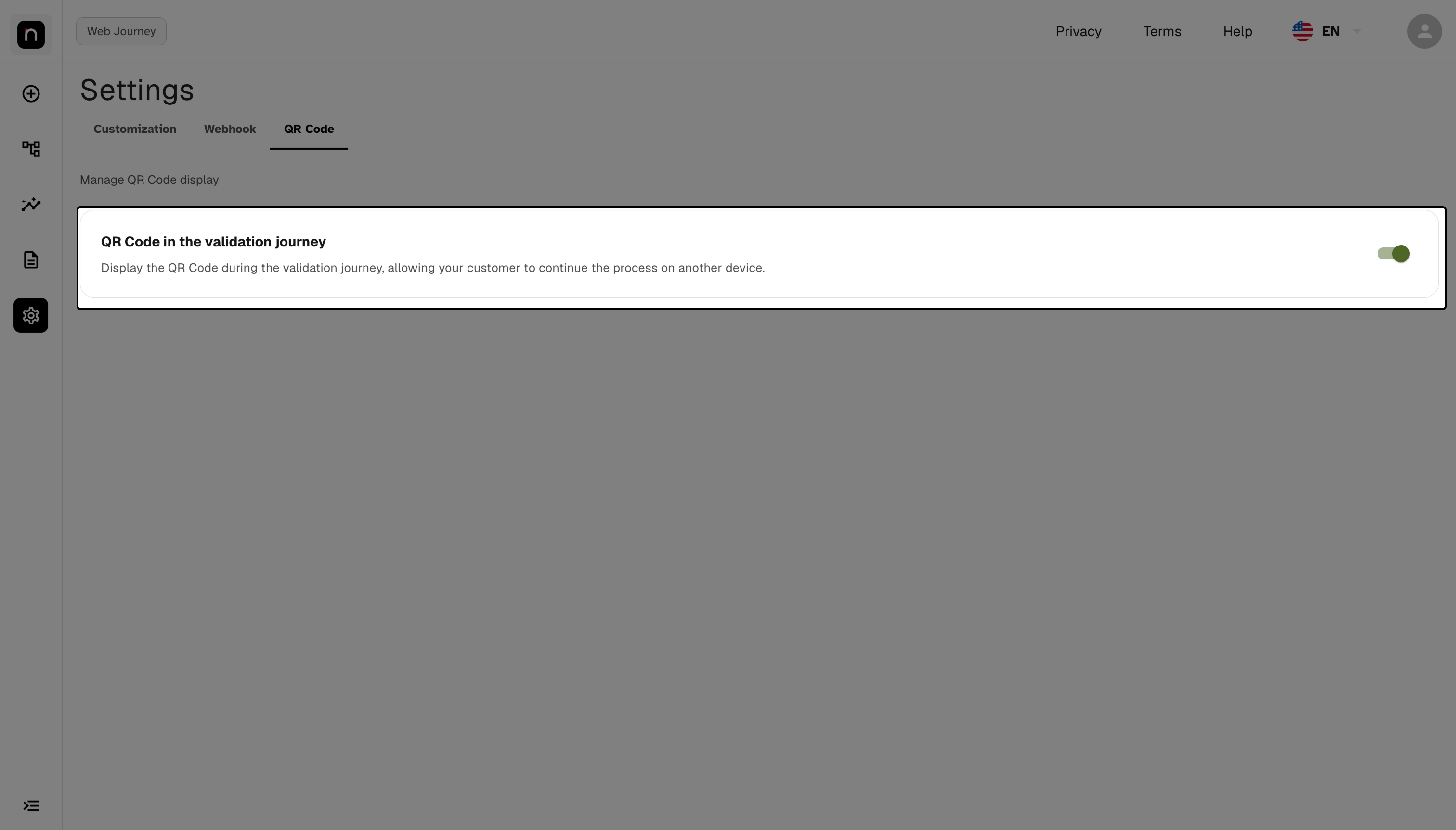
The toggle turned on, with the Portal's confirmation feedback.
Step 3 — Validate on a real journey
Start a journey from desktop and confirm the QR Code shows up.
Validate for real, not just via the toggle. The toggle confirms the configuration was saved, not that the journey is displaying the QR Code as you expect. Going through a journey is the only test that answers that — and it takes less time than a support ticket.
FAQ
I enabled it and the QR Code doesn't show up in the journey. Check three things: whether you changed it in the right environment's Portal (Staging only affects UAT), whether the journey you tested was started after the change, and whether you accessed it from desktop — the QR Code exists to move the journey to mobile, so it isn't shown to someone already on mobile.
Does the change apply to journeys that are already running? No. It applies to journeys started after the change.
I enabled it in Staging. Does it apply to Production too? No. Each Portal only affects its own environment. You need to repeat the change in the Production Portal.
I have multiple branches. Does enabling it apply to all of them? Confirm the behavior with Unico support before assuming so. The current screen doesn't offer branch selection, and propagation across tenant and branches depends on your account's configuration.
I disabled it by mistake. How do I turn it back on? Click the toggle again. The effect is immediate in both directions, and nothing is lost — the setting is simply on or off.
Do I need to change anything in my integration to use QR Code? No. The flow already exists in the product; this screen only controls whether it's displayed.
Who enabled it and when? The change is logged, but the screen doesn't show the history. To check, contact Unico support.
Can I configure the appearance or expiration time of the QR Code? No. The only available setting is turning it on and off.
Quick reference
IDCloud Portal
 └─ Settings (gear icon in the sidebar)
     └─ QR Code tab
         └─ QR Code in the validation journey
             └─ Enable QR Code in the journey ... on/off

Immediate effect, no save button · UAT and Production independent · Applies to journeys started after the change